
How to create A Google Search Console Account and Connect it to Your Website

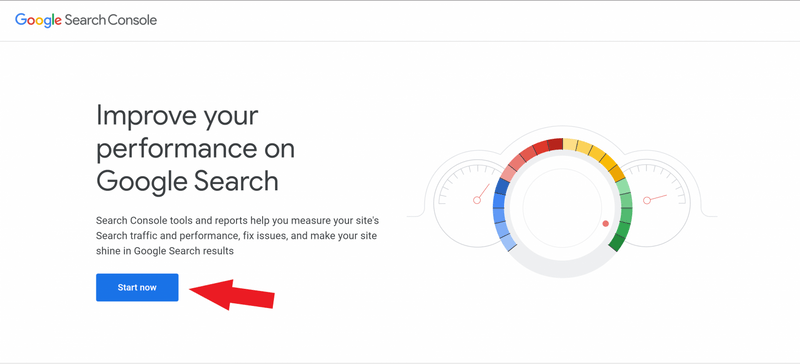
Step 1.
First, make sure you have Google Analytics configured. Next, head to https://search.google.com/search-console/about, and click “Start Now”
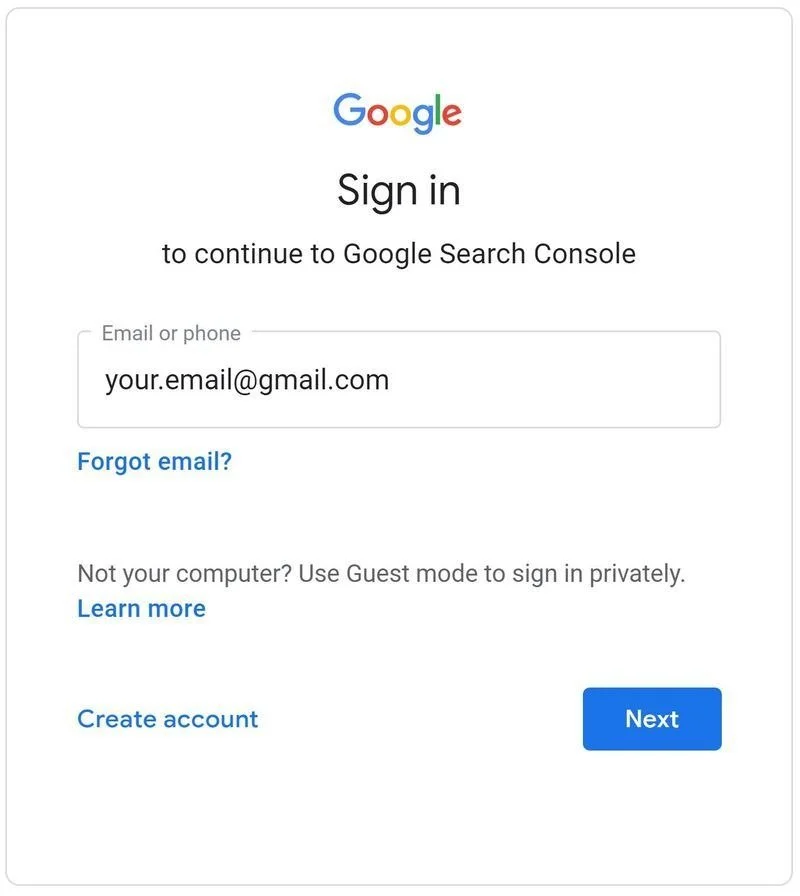
Step 2.
If prompted to sign in, make sure to sing in using the same email you used to configure Google Analytics
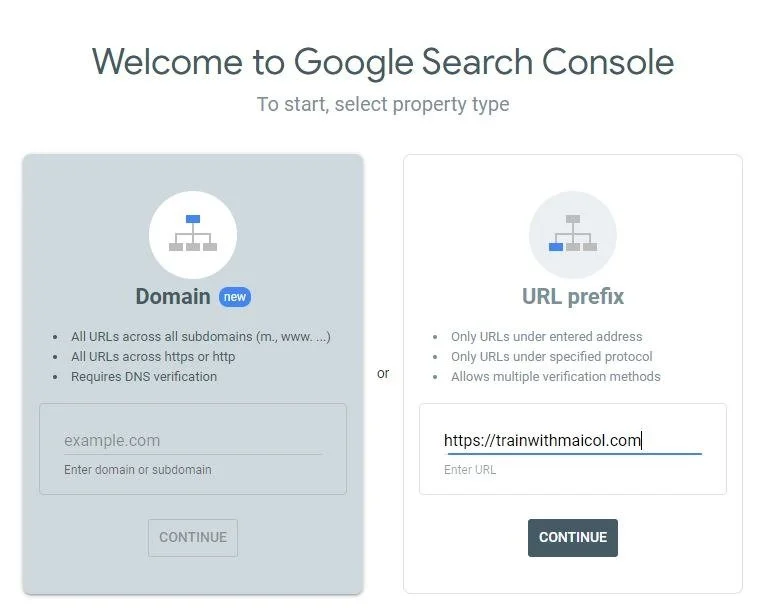
Step 3.
Using the “URL prefix” option, enter your website URL with the “https://” and/or “www”
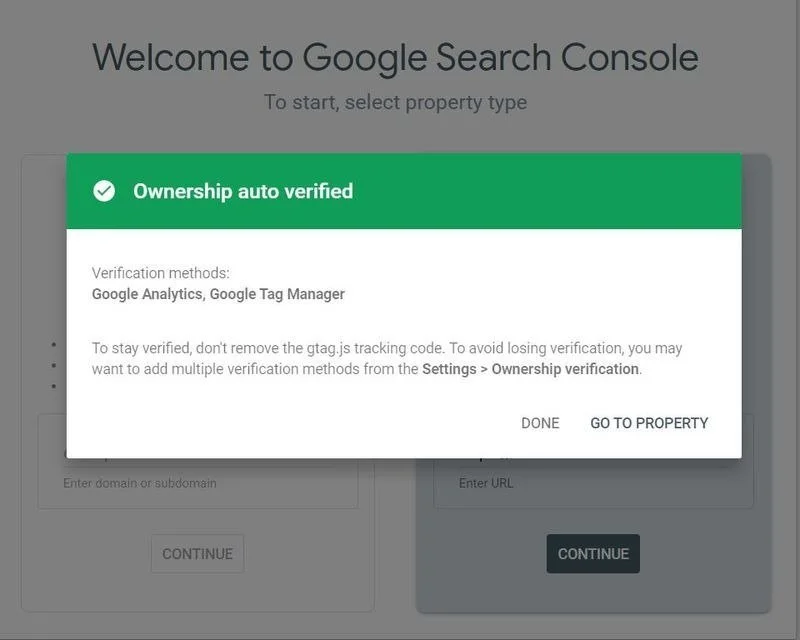
Step 4.
You should receive an “Ownership auto verified” notification. From here, select “GO TO PROPERTY”
Step 5.
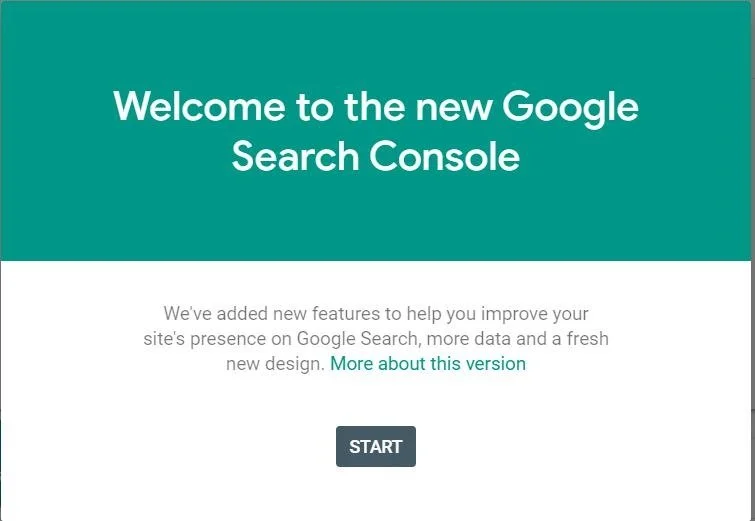
Click START
Step 6.
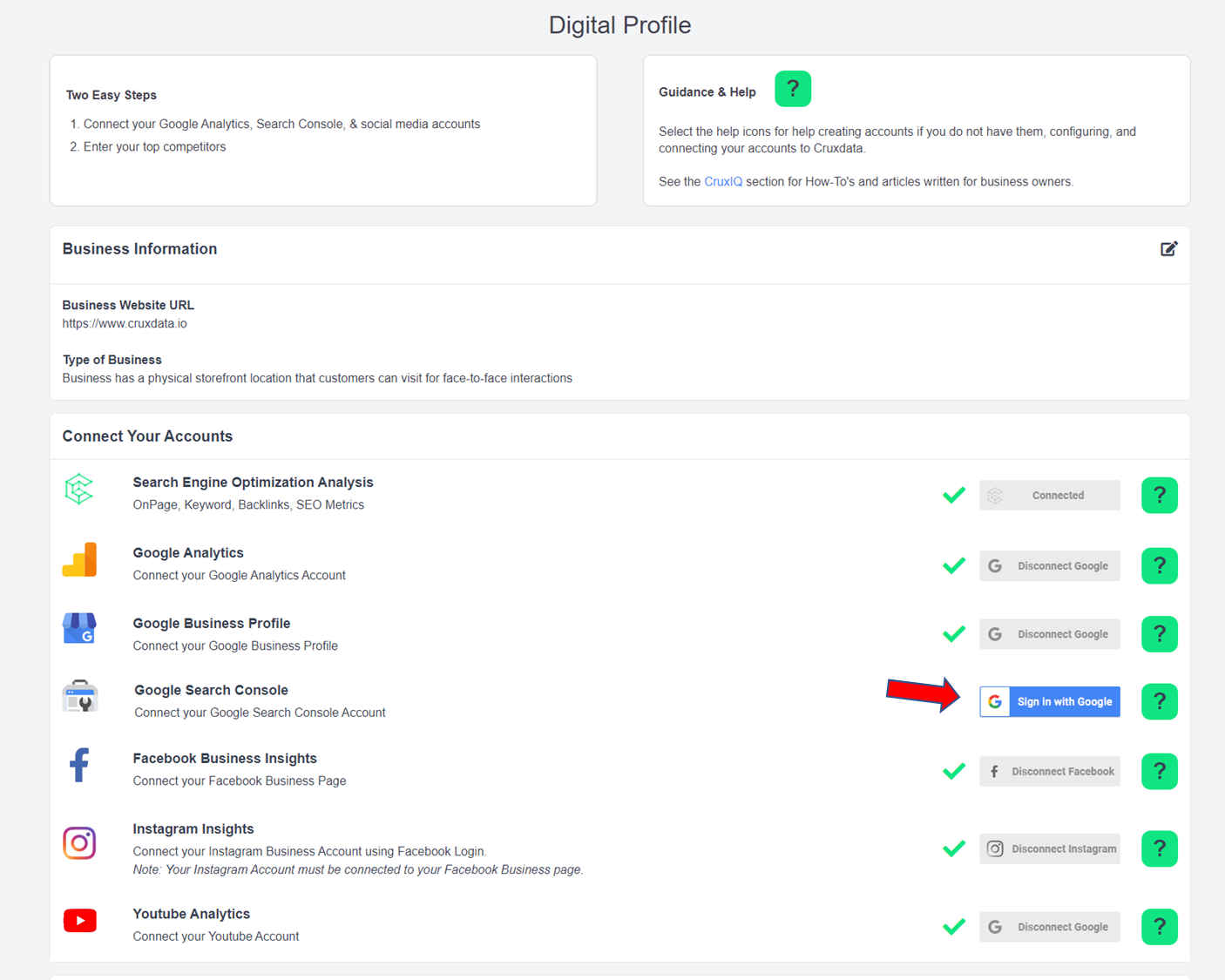
Login to your Cruxdata account, head to your Digital Profile, and click "Sign in with Google"

Step 7.
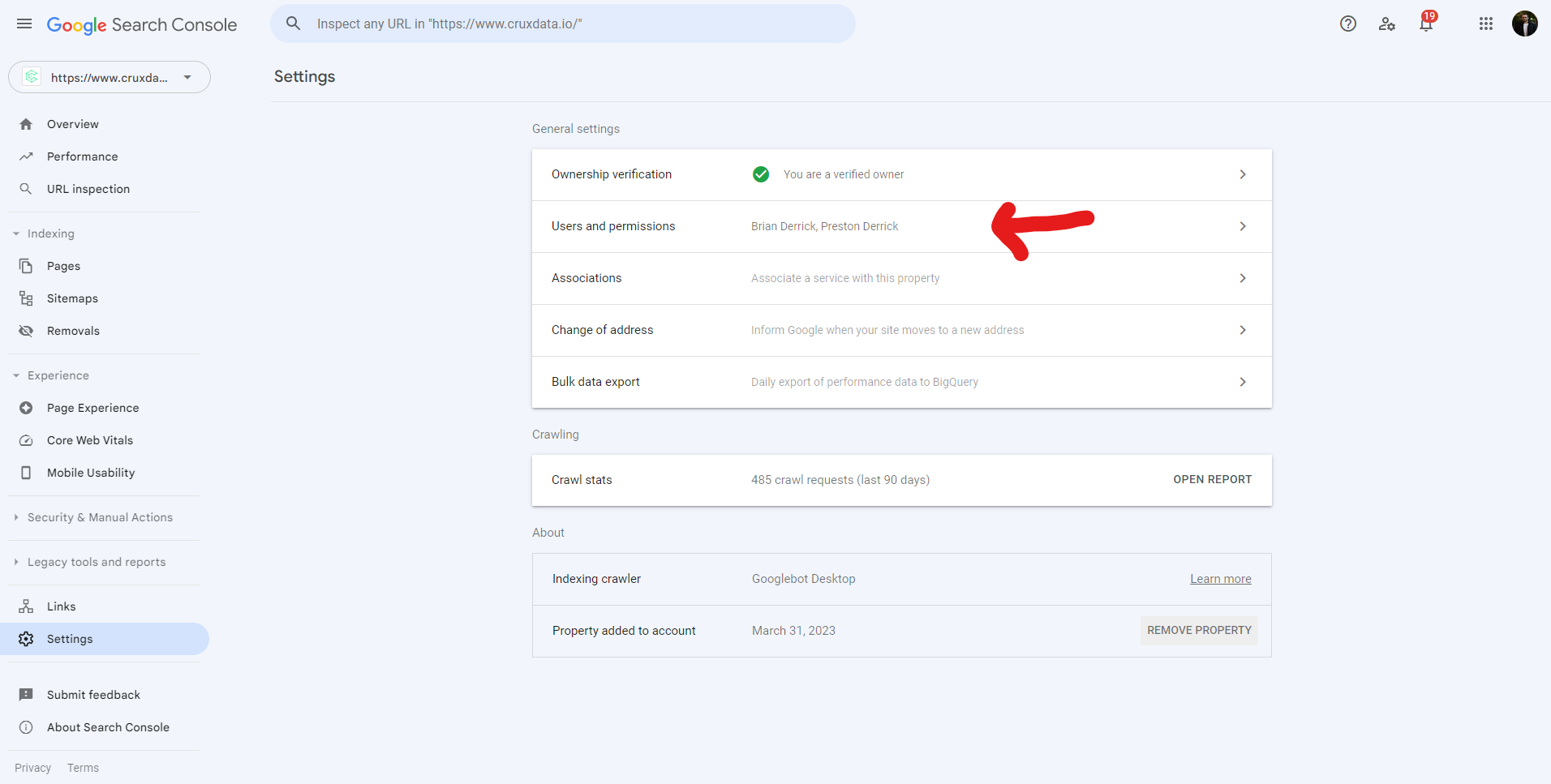
OPTIONAL: If you're working with a developer, you'll need to add them as a user to your Google Search Console. To add a user to your Google Search Console, click “Settings” in the bottom left hand corner.
Step 8.
Select "Users and permissions"
Step 9.
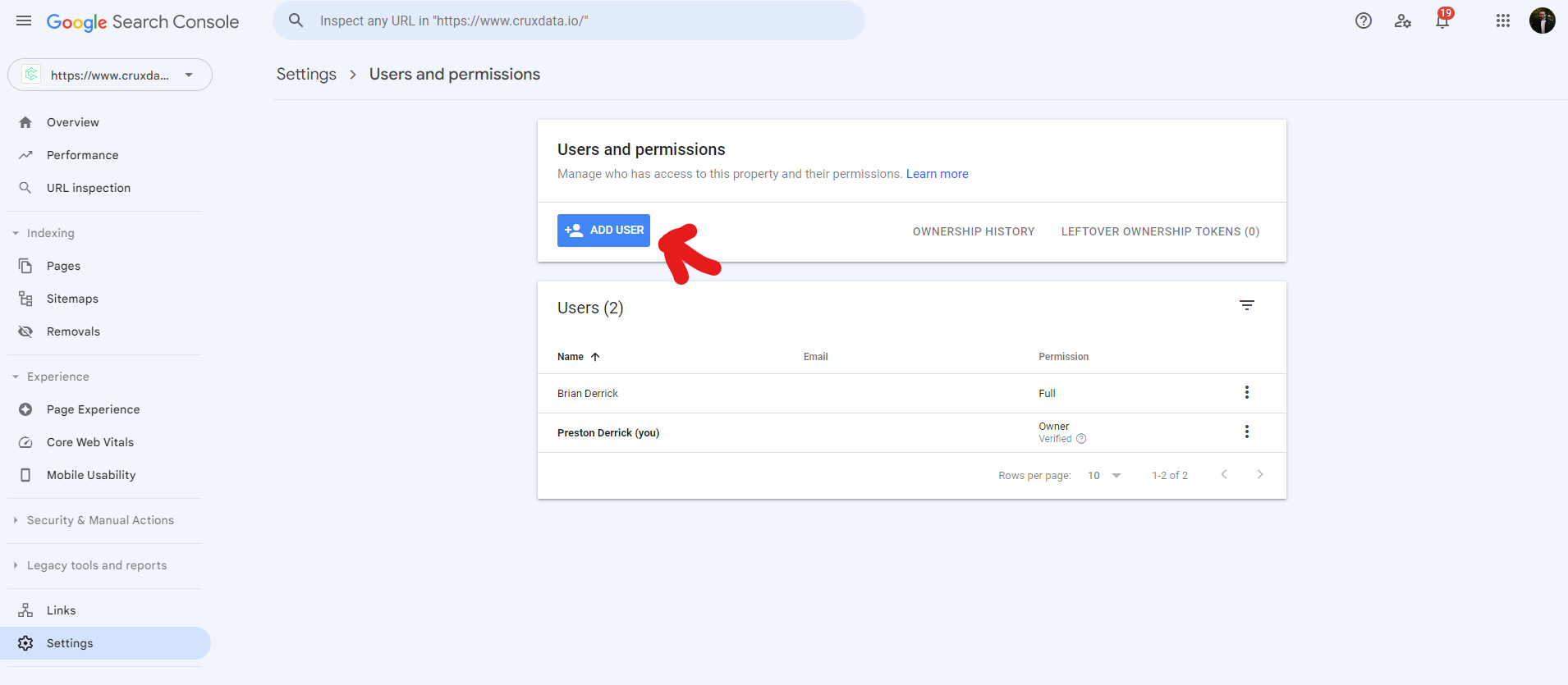
Click the blue "ADD USER" button in the top right, and enter the developers email. Click "ADD" and you're done!